 ACBot
Install & first run
About 10 minutes · Windows 10/11Emulator
Recommended: LDPlayer 9 or MuMu (Android 12), installed in its default folder. LDPlayer 14, BlueStacks and MuMu (Android 15) may work but can have bugs.
Resolution
1600×900
Root
Only needed for root profile swap and account creation
Download and unzip
Get Basic or Pro from the Download page. Unzip the whole folder to Desktop or Documents - don't run it from inside the zip.
Allow it past Windows
If Windows says "Windows protected your PC", click More info then Run anyway. If Smart App Control blocks it, turn it off in Windows Security.
Open ACBot and enter your key
Close the emulator first, then open ACBot.exe and paste your license key (Pro only).
Pick your emulator
Open Settings at the bottom left and choose your emulator and instance. ACBot sets the resolution and ADB for you.
Choose what to automate
Set your attack strategy and army slot, loot filters, walls and upgrades. Keep the in-game army tabs at their default size.
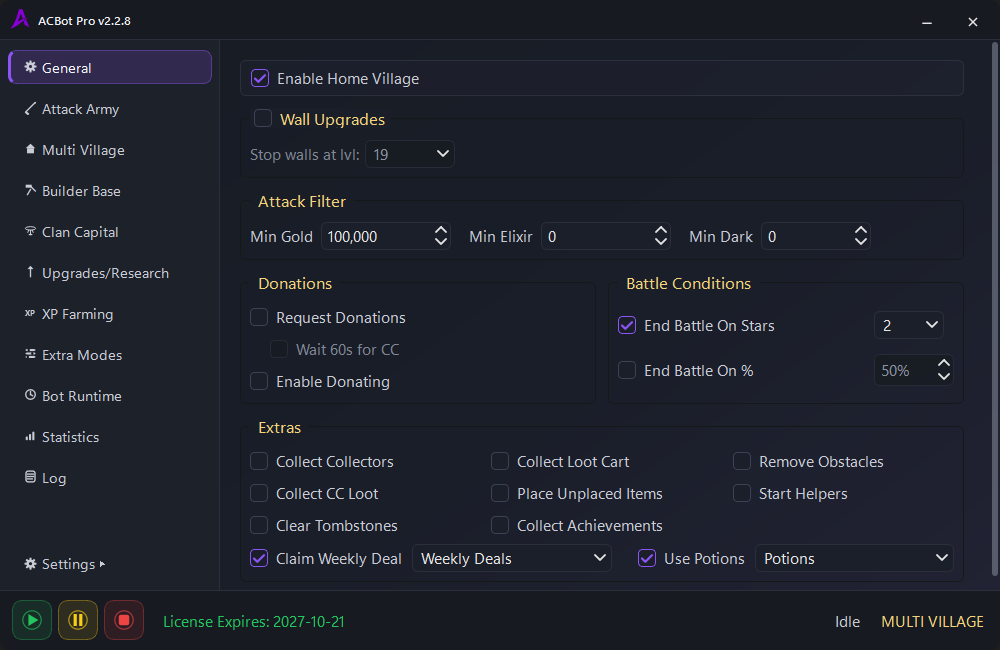
Press Start
ACBot opens the emulator and Clash of Clans and starts playing. Watch the Log page for the first few minutes.
Multiple accounts
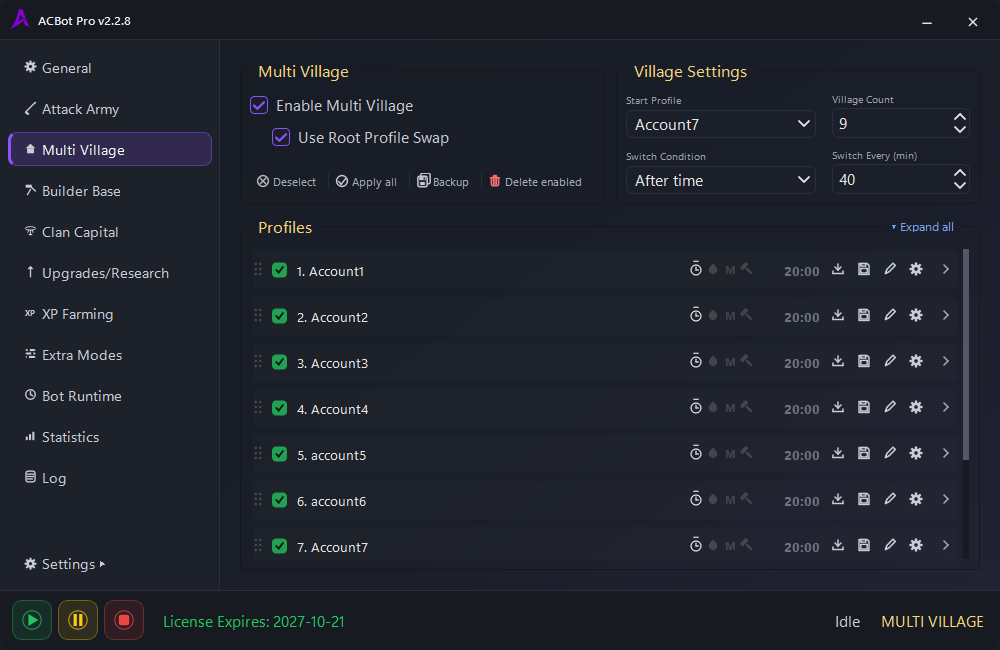
Turn on Enable Multi Village on the Multi Village page and set the village count. Each village gets its own profile with its own settings - click a profile to edit it, or use Apply all to copy settings to every village.
Choose when to switch: after a set time, when loot is full, when builders and the lab are busy, or after one cycle of all enabled modes.
Root profile swap
With root enabled on your emulator, ACBot can swap accounts directly instead of going through the in-game account list - much faster and more reliable. Back up each village's login first with the save button beside the profile, then turn on Use Root Profile Swap.
Troubleshooting
"Invalid license key"
Opening and closing the bot quickly starts a short cooldown - wait a few minutes. A new PC counts as a new device (2 per license) and has to be on the same network as a PC you've already used.
Stuck searching or loot not read
Set the in-game army tabs back to the default size and make sure the emulator is set to 1600×900.
Emulator won't connect
Open Settings and use Restart ADB, then make sure only one emulator instance is running.
Still stuck?
Post your log file in the support channel on Discord.
Updating
Download the new version and replace ACBot.exe in your existing folder - your settings and profiles stay. Check the changelog to see what changed.